Browse help topics
A document could not be read
A document Taxably could not read is never left out quietly. The sheet names it and says what to do; here are the common cases.
- Applies to
- Taxably Connect 3.3.9 and later
- Last reviewed
On this page
When a document cannot be read, the client's sheet still builds from the others. The document is named in the questions and notes at the end of the sheet, with the reason and what to do.
A locked PDF
Brokerage and payroll statements often come with a password.
- Open Review and find the locked file under the client.
- Type the password into the card and press Save answer.
- Build the client again. The next build opens the file with it.
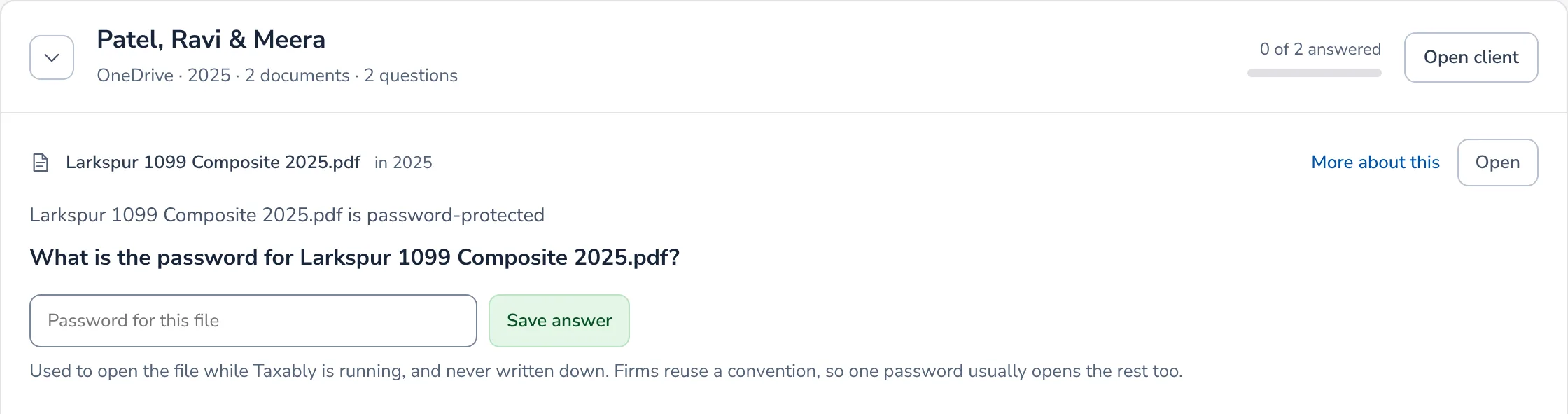
Taxably keeps the password only while it is open, and never saves it. If Taxably is closed before the next build, give the password again. Firms often reuse one convention, so one password may open the client's other files too.
A kind of file Taxably does not open
Taxably reads PDFs, scans and photos, spreadsheets, Word and text documents and slides. It does not open emails, ZIP files, iPhone photos saved as HEIC, or Apple Numbers, Pages and Keynote files. The sheet names each one it finds. Save it as a PDF or a JPEG in the client's folder, then build again.
Spreadsheets, Word files and slides also need the document converter. If it is not installed, Settings shows it under Firm, with a way to add it.
A very large file
A document over 400 pages or 2 GB is held before it is read, named on the sheet and on the Review screen, and costs nothing. Divide it with the Smart Splitter and the new files are read on the next build.
A file kept online only
A cloud drive can keep a file "online only". Make it available on this computer in your storage app, then build again.
A file that did not pass the safety checks
A file built in a way Taxably will not open is set aside, and its contents are left out of the prep sheet. Request a new PDF from the sender.
A scan that is hard to make out
Where Taxably could not confirm what it read, the row says so and asks you to check the figures against the page. Every figure links to its page, so checking takes a click.
Related articles
- When a sheet does not buildTaxably does not fail quietly. Here is where it tells you something went wrong, and what to do in the common cases.
- Divide a scanned stack with the Smart SplitterWhen a client sends one PDF that is really several documents, the Smart Splitter divides it into one file per document, and leaves the original as it was.
- Work from a shared or synced driveTaxably reads client folders on a network drive or in a cloud storage folder the same way as local ones, and copies only what a build needs to this computer.
- The kinds of questions, and what each answer doesEvery question Taxably asks names the document, what it found and why it is asking. Here is each kind, with what your answer changes.
Still stuck?
Email support@taxably.ai, or send your question from Help and support.