Browse help topics
Connect your client folders
Point Taxably at the folder that already holds your clients. Nothing moves, nothing is read and nothing is charged.
- Applies to
- Taxably Connect 3.3.9 and later
- Last reviewed
Taxably works in the folders you already use: a folder on this computer, a network drive, or the folder your storage or practice app keeps here. Clients and staff keep saving documents where they do now.
Connect a folder
- In Taxably Connect, open Connect and press Choose folder.
- Pick the folder that holds one folder per client.
- Choose "Each folder inside is a separate client", then connect it.
Step 2
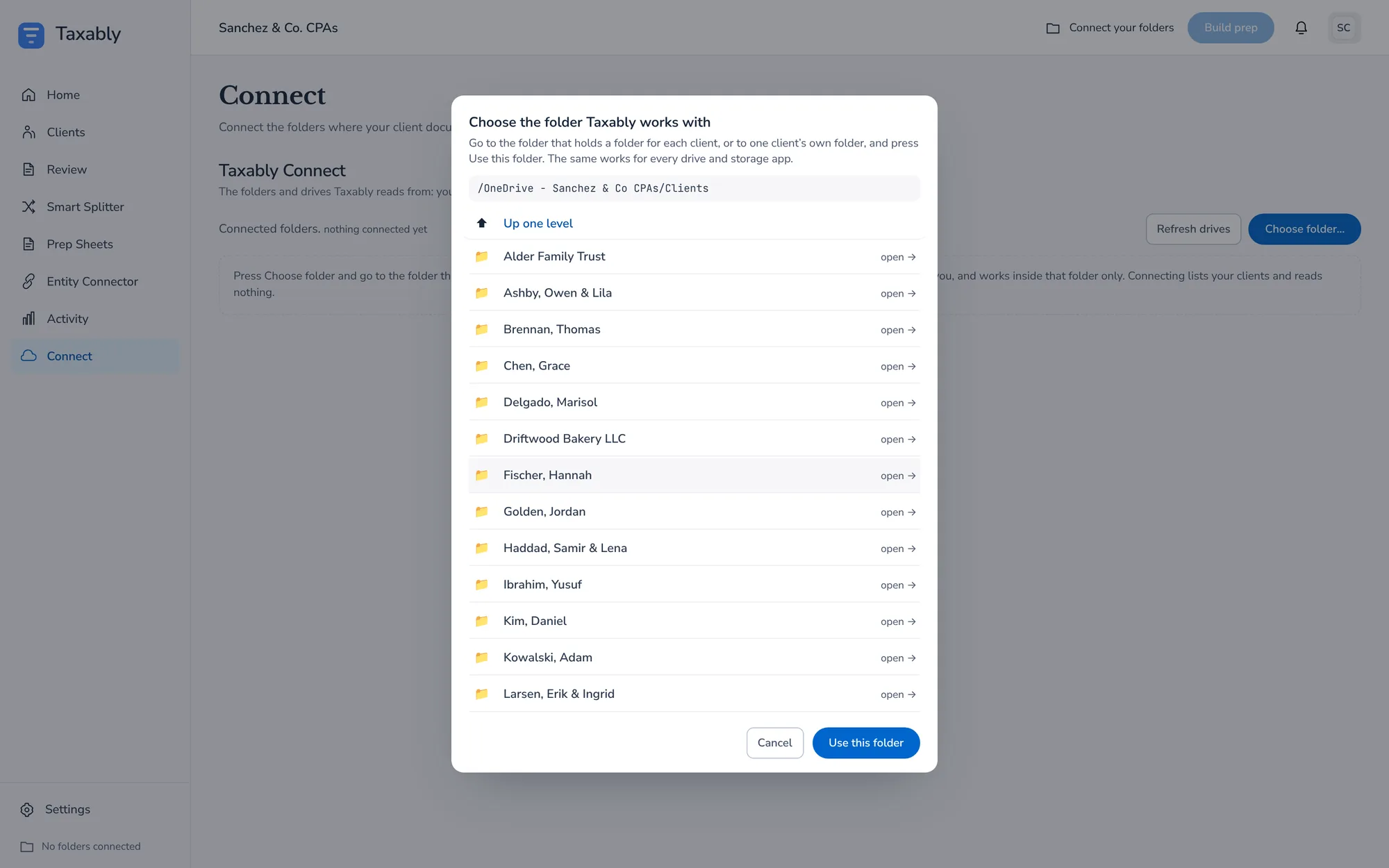
Pick the folder that holds one folder per client.
Step 3
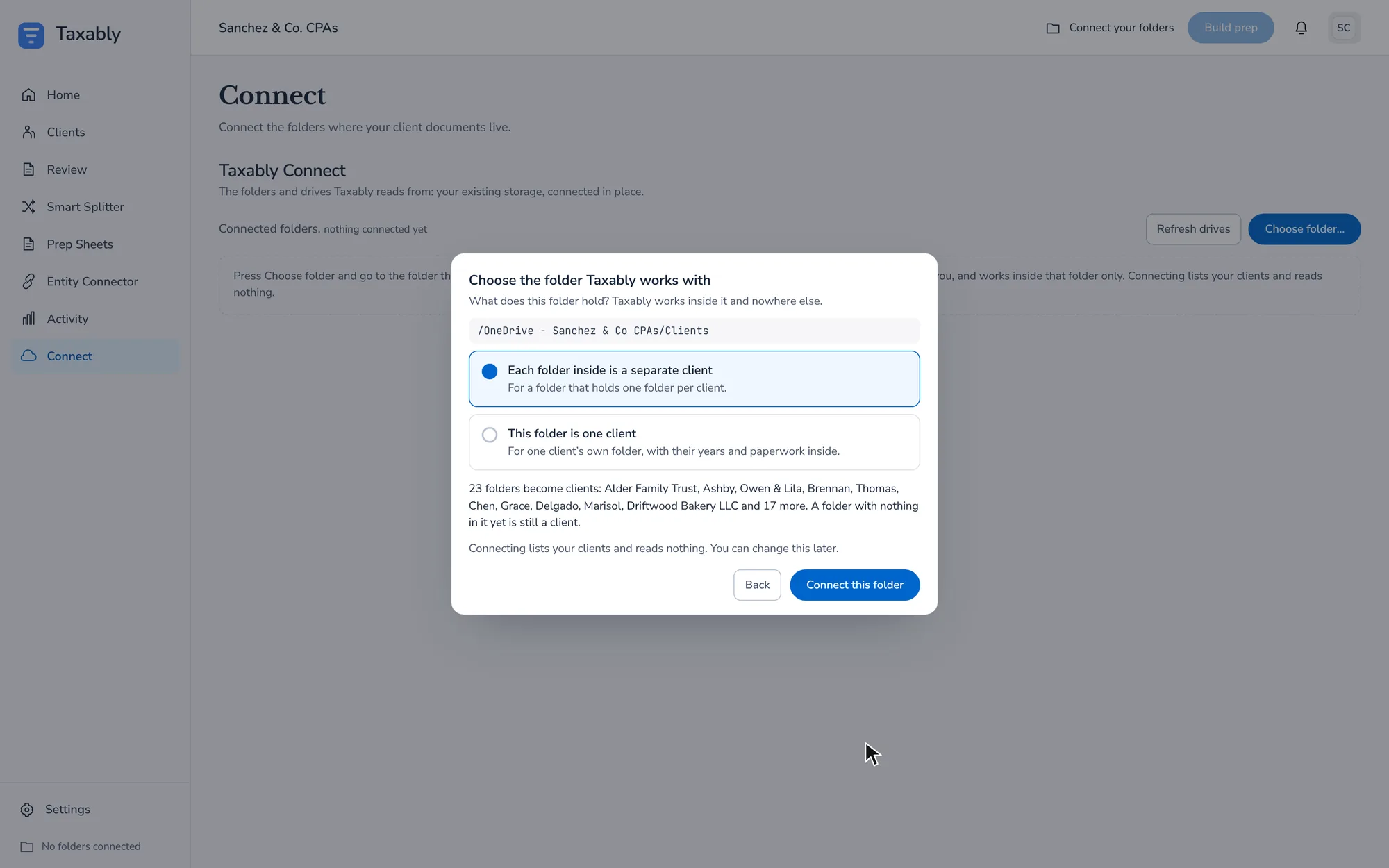
Taxably shows which folders become clients before you connect.
To connect one client on their own, choose "This folder is one client" in step 3 instead.
Taxably lists your clients from the folder and file names. It opens no document and costs nothing. A large folder can take a few minutes to list; the folder's row counts what it has looked at so far, and Stop looking ends the listing and keeps the clients found.
Check what it found
Press View folders to see which folders Taxably took for clients. A folder it did not take, such as one holding no document Taxably reads, is listed with the reason, never dropped without a word.
Where a folder's name could be a person or a business, Taxably asks you on the Review screen. See Confirm folders Taxably is not sure about.
Change or disconnect
- Change folder puts another folder in a connected folder's place.
- Disconnect stops future work on that folder.
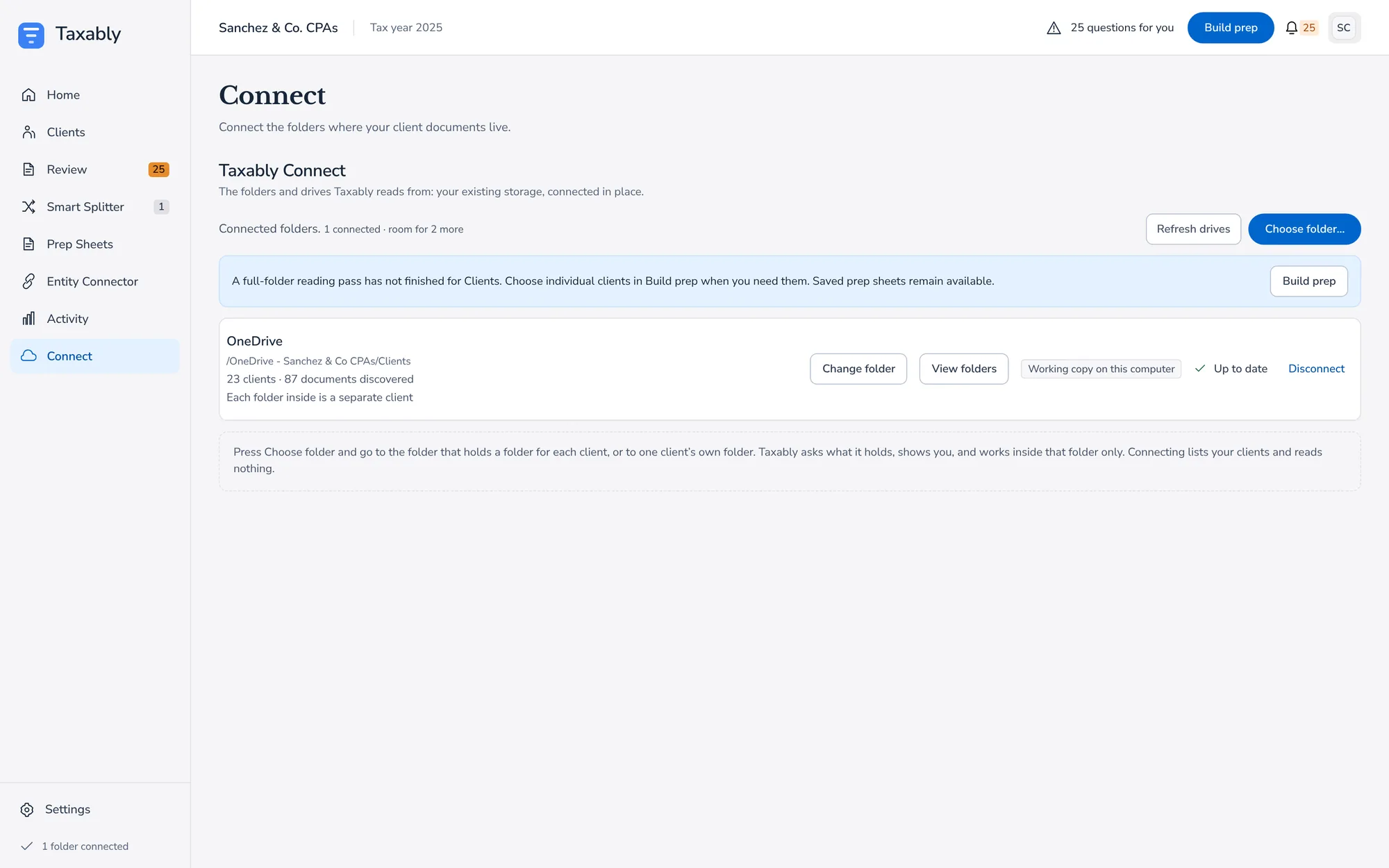
Neither deletes a document or a prep sheet.
Related articles
- Confirm folders Taxably is not sure aboutWhen a folder's name could be a person or a business, Taxably asks you before it prepares anything, with three answers to choose from.
- Work from a shared or synced driveTaxably reads client folders on a network drive or in a cloud storage folder the same way as local ones, and copies only what a build needs to this computer.
- Build prep sheetsChoose your clients in Build prep, see what the build adds to your bill, and confirm. Taxably reads their documents and writes each client's sheet.
- Your first hour with TaxablyConnect the folder that holds your clients, build a few prep sheets, answer what Taxably asks, then build the rest.
Still stuck?
Email support@taxably.ai, or send your question from Help and support.