Browse help topics
Your first hour with Taxably
Connect the folder that holds your clients, build a few prep sheets, answer what Taxably asks, then build the rest.
- Applies to
- Taxably Connect 3.3.9 and later
- Last reviewed
Taxably Connect is installed and this computer is linked to your firm. See Install Taxably Connect and link this computer.
Your files stay where they are. Taxably works in the folders you already use and writes one prep sheet into each client's folder.
Connect your client folders
- Open Connect on the left and press Choose folder.
- Pick the folder that holds one folder per client.
- Choose "Each folder inside is a separate client" and connect it.
Taxably lists your clients from the folder names. It opens no document and charges nothing.
Build a handful first
- Press Build prep at the top of the window.
- Tick five or ten clients you know well and press Check selection.
- Read the price line, then press Activate and build.
Home shows the build as it runs: Gathering, Reading, Sorting, Checking, Preparing.
Answer what it asks
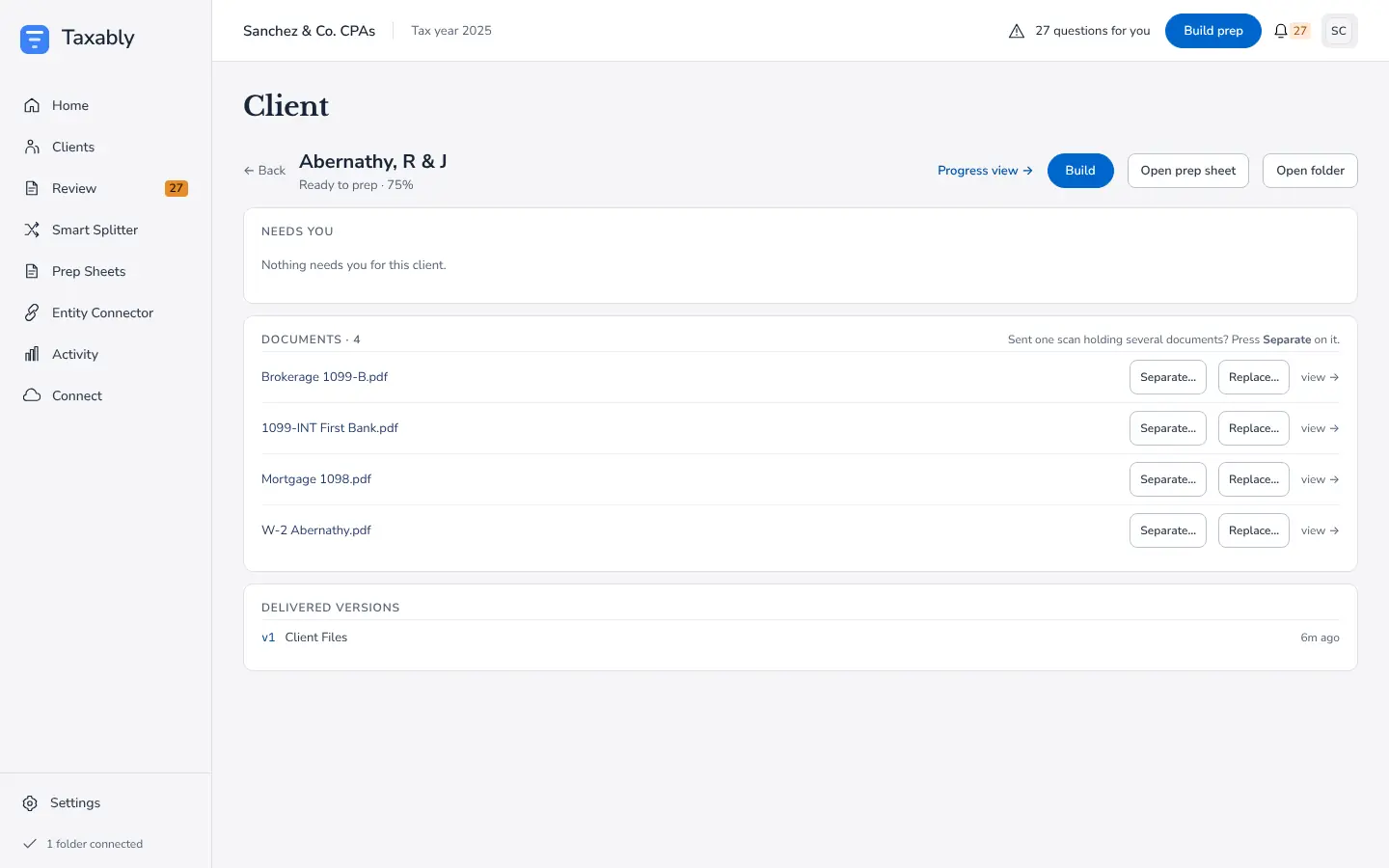
Where the paperwork cannot settle something, such as whose a document is or which tax year it belongs to, Taxably asks you on the Review screen instead of guessing. Answer the last question for a client and that client's sheet is built.
Then build the rest
Open a few sheets from the Prep Sheets screen and check them against clients you know. When they read the way you expect, press Build prep again and choose the rest of your clients.
Related articles
- Install Taxably Connect and link this computerTaxably Connect runs on the Windows computer that can open your client folders. Install it, sign in once, and that computer is linked to your firm.
- Connect your client foldersPoint Taxably at the folder that already holds your clients. Nothing moves, nothing is read and nothing is charged.
- Build prep sheetsChoose your clients in Build prep, see what the build adds to your bill, and confirm. Taxably reads their documents and writes each client's sheet.
- Answer Taxably's questionsWhen the paperwork cannot settle something, Taxably asks you instead of guessing. Answer once and the answer is kept.
Still stuck?
Email support@taxably.ai, or send your question from Help and support.